
Document storage
Quotes, POs, contracts, drawings, submittals, and install photos often end up split across Q360, SharePoint, email, and shared drives. Duplicate copies make it harder to manage access and identify the current version. Sales can send one version of a contract while delivery works from another.
How it works
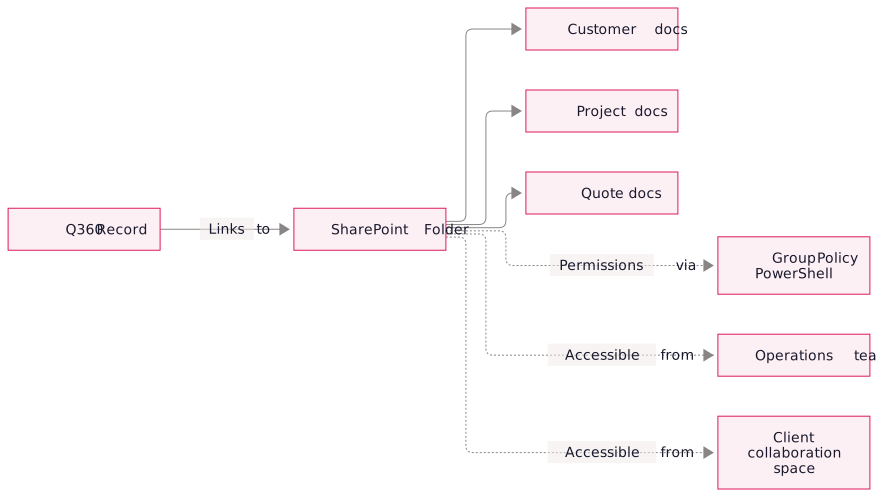
SharePoint stores the documents and manages permissions centrally. Each Q360 record links directly to its customer, project, or quote folder.
Integration features
- Single source of truth: every customer, project, and quote has one official document folder in SharePoint, accessible directly from the corresponding Q360 record
- Structured file naming + hierarchy: folder templates are applied consistently across customers so finding "the latest revised drawings for the Denver install" takes 10 seconds, not 10 minutes
- Permission management: SharePoint groups are mapped to your Q360 roles; a change to someone's Q360 access automatically propagates to their SharePoint permissions
- Accidental deletion protection: SharePoint retention policies, versioning, and group policy controls ensure users can't accidentally destroy the primary copy
- Client collaboration: customer-facing folders can be shared externally for submittal review, change order approval, or deliverable sign-off without exposing internal data
- PowerShell automation: provisioning new customer folders, applying permissions, and enforcing naming conventions happens programmatically, not by hand
Implementation
Technology stack.
- Q360 Miscellaneous Documents + Customer Folders: the Q360 features that hold link fields and metadata
- SharePoint Online: document library with folder hierarchy, permissions, versioning, and retention policies
- Microsoft Graph API: for programmatic SharePoint operations (folder creation, permission management, link generation)
- PowerShell scripts: automation for provisioning, bulk operations, and compliance reporting
- Group Policy: enterprise-wide enforcement of retention, sharing, and security rules
FAQ
Users can open the files from the Q360 record, either within Q360 or through a direct SharePoint link.
We migrate them to SharePoint as part of the setup phase. Q360 records get updated with the new SharePoint links, and the original attachments are archived (or deleted if you prefer).
Yes. SharePoint supports external sharing with granular permissions (read-only, comment, or edit), so you can hand a customer their submittal folder without exposing other project data.